Customer emails, meeting invitations, follow-ups, call preparation… Outlook quickly becomes the hub of the workday.
As a result, some important information remains in emails instead of being captured in the CRM. Follow-ups are not always documented, certain interactions go unnoticed, and visibility into opportunities becomes incomplete.
To bring CRM closer to the way sales teams actually work, Microsoft now offers Copilot for Sales, which enables CRM integration in Outlook with Dynamics 365 Sales.
What is CRM integration in Outlook with Copilot for Sales?
With Copilot for Sales, teams can access Dynamics 365 Sales information directly from Outlook, without needing to open the CRM in a separate window.
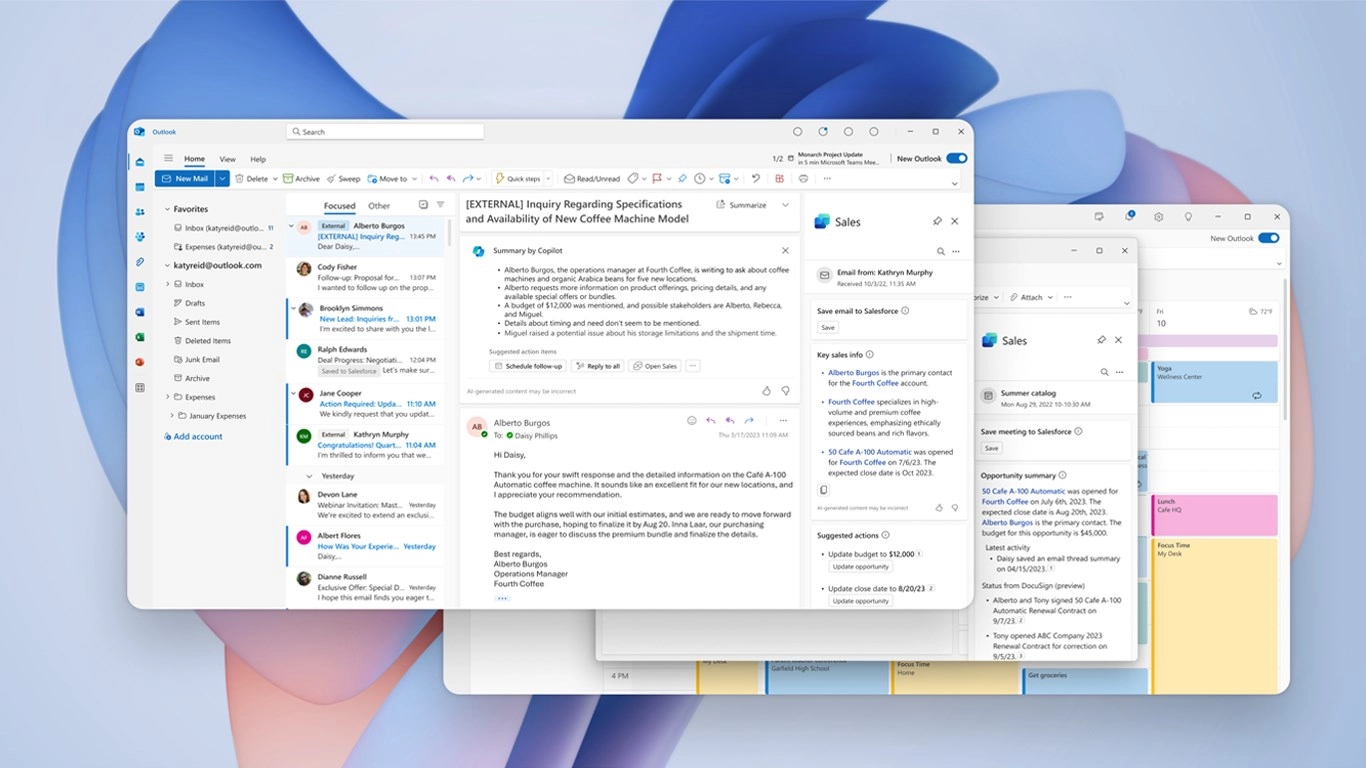
When a salesperson reviews an email, they can immediately see the information associated with the related contact, account, or opportunity. They can link the exchange to the CRM, review the history of interactions, or update certain information, all from within the Outlook interface.
This CRM integration in Outlook allows sales teams to document client interactions without leaving the tools they already use every day.
The objective is simple: bring the CRM to where salespeople work, rather than asking them to constantly switch between applications.
Access CRM data directly from Outlook
Thanks to Copilot for Sales, Outlook can display customer information coming from Dynamics 365 Sales.
For example, a salesperson can verify whether the contact is already associated with an account, review the current opportunity, or add the email to the communication history.
This immediate visibility helps provide better context for conversations and ensures that interactions are properly recorded in the CRM.
Over time, this contributes to improved data quality and a more reliable view of the customer journey.
Document a client interaction in seconds
Imagine a salesperson receiving an email from a client who wants to discuss an ongoing proposal. From Outlook, they can use Copilot for Sales to immediately view the opportunity associated with that contact in Dynamics 365 Sales.
In just a few clicks, they can link the email to the opportunity, add a note summarizing the client’s request, and schedule a follow-up meeting.
An interaction that might otherwise remain buried in a personal inbox becomes information accessible to the entire team. Managers gain better visibility into opportunity progress, and colleagues can quickly understand the context of a client engagement.
Prepare meetings more effectively with Copilot
One of the key advantages of Copilot for Sales is its ability to help sellers prepare for client meetings.
Before a meeting, Copilot can summarize the key information related to an account or opportunity, including recent interactions, potential risks, or important elements of the client relationship.
Salespeople gain a quick overview of the situation, making it easier to prepare discussions and arrive at meetings with a clear understanding of the context.
Speed up sales email writing
Copilot can also assist salespeople when drafting communications directly in Outlook.
Based on the context available in Dynamics 365 Sales, it can suggest draft emails or propose different ways to frame a message depending on the situation. Teams can then adjust the tone or content according to their needs.
This assistance helps accelerate follow-ups while maintaining communications that are aligned with the information stored in the CRM.
Update the CRM without leaving Outlook
One of the most important benefits of CRM integration in Outlook is the ability to update certain information in Dynamics 365 Sales directly from the inbox.
Users can create a lead, add a note, or modify information related to an opportunity without navigating to the full CRM interface.
This type of integration reduces friction for sales teams and encourages information to be updated when it is most relevant.
A practical way to improve CRM adoption
In many CRM projects, the technology itself is not the main challenge. The real issue is often user adoption.
If updating the CRM requires too many steps or forces users to leave their everyday tools, sales teams are more likely to postpone the task or forget it entirely.
By integrating Dynamics 365 Sales into Outlook through Copilot for Sales, Microsoft addresses this reality. Client interactions can be documented more easily within the same tool already used for communication.
The CRM therefore becomes a natural extension of the sales workflow rather than an additional administrative task.
Copilot for Sales goes beyond a simple technical integration between two Microsoft applications. It provides a practical way to bring CRM closer to the daily activities of sales teams.
By allowing users to access customer information, prepare meetings, and document interactions directly within Outlook, the solution helps improve both salesperson productivity and CRM data quality.
For organizations looking to maximize the value of their CRM, CRM integration in Outlook with Dynamics 365 Sales and Copilot for Sales can make a real difference in both adoption and data quality.
Would you like to better understand how Dynamics 365 Sales and Copilot for Sales can fit into your sales team’s daily workflow? Contact our team to learn how to optimize the use of your Microsoft CRM.